![Logo - 2021 FINAL 60px.png]](https://support.tcgmachines.com/hs-fs/hubfs/Logo%20-%202021%20FINAL%2060px.png?height=40&name=Logo%20-%202021%20FINAL%2060px.png)
Did you know you are able to edit and organize your inventory within the Sort UI? Here's how!
Start by selecting your cards by clicking on the small bubble in the top right corner (in grid view) or the checkbox beside the card (in list view). As soon as you select more than one, this will appear at the bottom of your screen:

Bulk Update:
The first option is ‘Bulk Update’. This allows you to select which factor of the card you’re changing. You can select to change the Store and Location of the cards, Price, Foil Type, Condition, Quantity, or Remove From Inventory (delete).
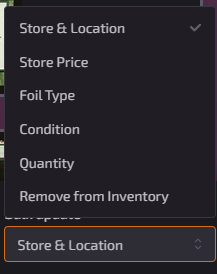
The selection you make here determines what other options you will see.
When changing store and location, you will see two boxes to represent that. For price, foil type, condition and quantity you will only see one box to type in to change the cards.

Clear your Inventory: If you want to clear your inventory and start from scratch, you can:
In the top right, toggle List View You will then see all your cards as a list. Right above the top of the first card you should see a check box. Check that, and another will appear above to select all the cards in your inventory.
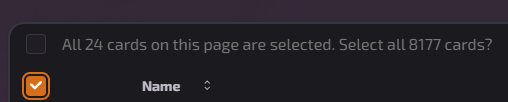
You will then move to the bottom page, where the bulk edits can be made, and change the Change the 'Store & Location' selection and choose Remove From Inventory. This will delete all cards from your Inventory.
Warning! This action can not be undone. If you delete cards, they will be out of your inventory until they go through your PhyzBatch again.