![Logo - 2021 FINAL 60px.png]](https://support.tcgmachines.com/hs-fs/hubfs/Logo%20-%202021%20FINAL%2060px.png?height=40&name=Logo%20-%202021%20FINAL%2060px.png)
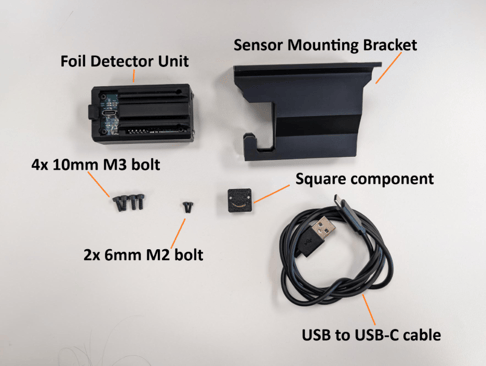
Your Foil Detection Module should include the following parts:
-Foil Detector Unit
-Sensor Mounting Bracket
-USB to USB-C cable
-Small Square Component-
-Two 6mm M2 bolts
-Four 10 mm M3 bolts
To install your Foil Module, you will require the following tools:
-Screwdriver and Driver Set
-Tweezers (optional, but recommended)
-T8 driver bit
-T6 driver bit
-T10 driver bit
-H4 driver bit
-H3 driver bit (optional)

- We would recommend reading this full guide through before beginning your installation.
Note: If you have an older machine, the top and side panel come off in once piece. The rest of the instructions will be the same, though things may look slightly different.
- First, disconnect your scanner unit from the conveyor.
- Then, remove the Extended Hopper from the top of the scanner unit.
- Next, remove the Hopper Wedge by using your H4 Bit to remove the three screws fastening the Wedge to the Scanner Unit.
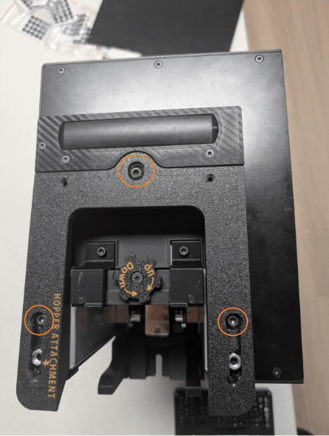
- Once the Hopper Wedge is removed, next remove the three screws of the WI-FI Antenna using your T8 bit. Do not remove the WIFI module. It will not come off the machine, and the wire it is attached to does not have a lot of slack and can be easily damaged if moved. Please let it rest on top of the machine while you complete the next steps.

- Next, use the T8 bit to remove the remaining screws from the top panel of the scanner housing.
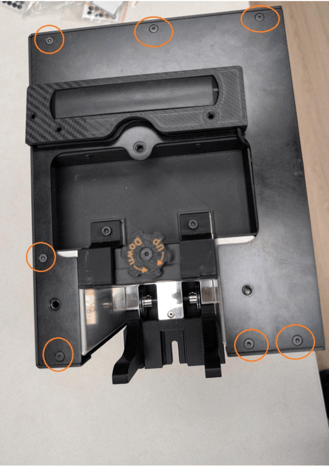
Pro Tip: The WI-FI module cord snakes through the machine – be careful of this when removing and placing the top panel.
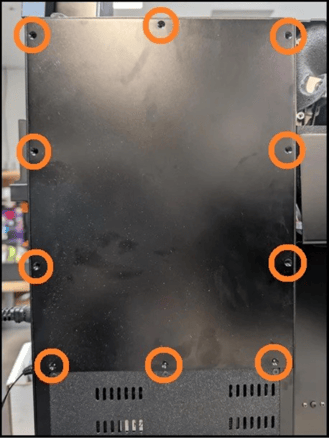
- Once the top panel is off, you will also have to remove the back panel of the scanner module. This is the side opposite the scanner bay door.
- Next, lift the dust cover off the top panel of the scanner housing – Note there are no fastenings; this will just sit in place.

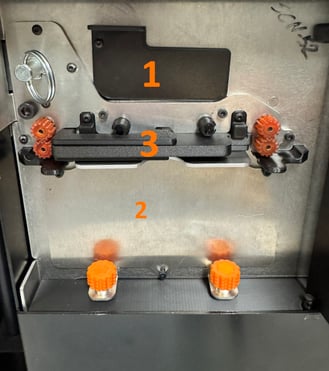
 Next, open the Scanner Bay Door and remove the following items from the Scanner.
1. The Scanner Bay view window
2. The Scanner Plate.
3. The Glass Tray Holder.
- Navigate back to the top of the scanner unit. Looking directly down, you should see the top of the LED cover. Remove the four screws from the top and set them aside. They will not be reused.
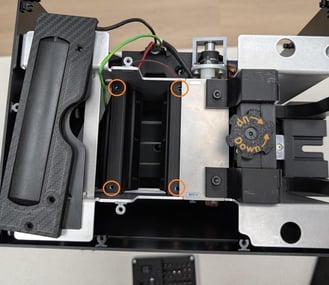
- Once the screws are out, you will place the Sensor Mounting Bracket. It will slide into the machine and sit on top of the LED cover you were just working on. Ensure the cable gap faces toward the front of the machine. Do not install the screws yet. It will look like this from the Scanner Bay door:

- Next, facing the Scanner Bay door, you will insert the Foil Sensor Basket. Feed the basket through the scanner bay cover hole and into the mounting bracket slot. These should slide together easily. Push the basket all the way in, it should sit flat against the LED panels with the basket centered in the bay.
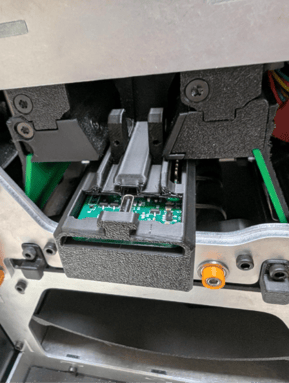
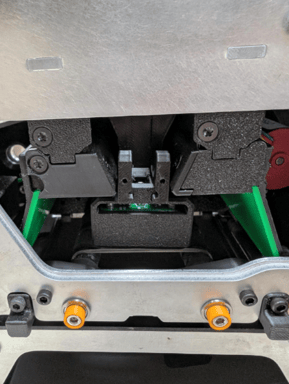
- Now, move back to the top of the machine and secure the Mounting Bracket. Use the four new 10mm bolts to secure this in place. You will need your screwdriver and your T10 bit. If you are struggling to get the bolts closest to the feeder secured, see the note below on how to loosen the metal plate to allow for more room to work.
Pro Tip: When installing, try not to touch the bottom of the basket, only handle the 3D printed sides. This can leave residue on the plate and impact its functionality.
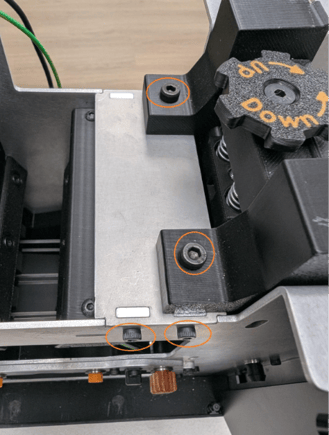
-
With these pieces shifted, you will have better access to screw in the Mounting Bracket. Do this now, then reinstall the Metal Plate and Feeder Headers.
- Now we will be connecting the USB Cable to the Sensor Board. To do this, feed the Type-C end of the USB Cable down the machine from the top, through the hole in the bracket. Hold the Foil Sensor Basket steady while inserting the connector into the sensor board. You should hear and feel a click when the cable is seated.
Pro Tip: Tweezers make this process much easier.
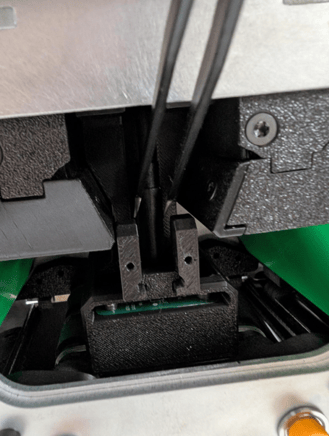
- With the USB connected, you can finish securing the basket using the front cap, the piece that looks like it is smiling (how fun is that!). Using your T6 Bit and the 6mm bolts, secure the cap through what would be his eyes. (Still fun?)
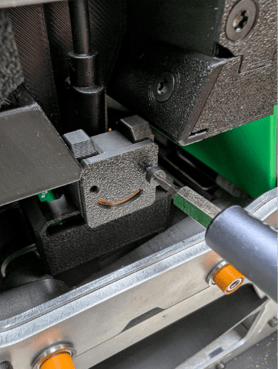
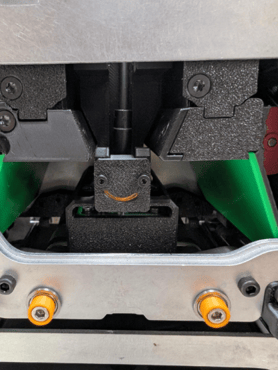
-
Now your PhyzBatch will always be happy to see you! The front side is secured, so next we will move to the back of the machine. Unscrew the bottom screws of the motherboard panel, and the side screw (on the back of the scanner unit) that holds the conveyor plugs in place.
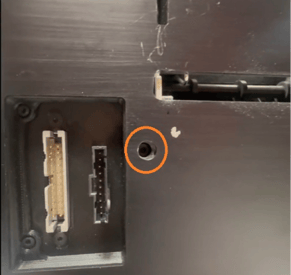
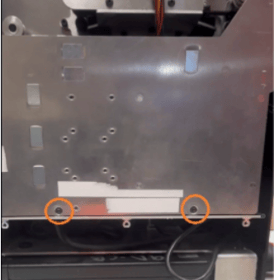
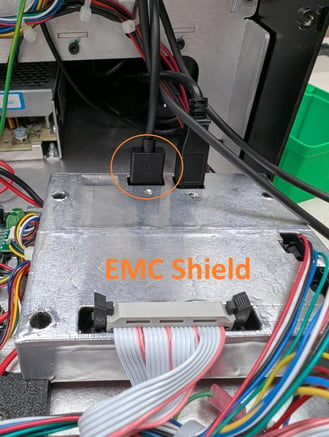
- Pull the motherboard down very carefully; this is a delicate piece of the machine. It will move down until it sits nearly level. Take the USB end of the cable and plug it into any available port on the motherboard.
-
Note: There will be an EMC shield covering the motherboard. Holes should be pre-cut to allow access to the USB ports. If not, use a box cutter or sharp screwdriver to pierce the marked divot, then fold the tape back until there is enough space for the USB connector to seat firmly.
- Connect the power cord and switch on the Motherboard. Look through the scanner window at the foil sensor board; if both LEDs are lit green, the board is powered and working correctly.
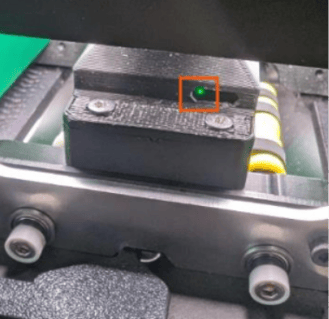
If either LED is not on, check the troubleshooting section below. Once confirmed, reassemble the machine in reverse order. When refitting the motherboard panel, do not force it. You may need to reposition the cables to accommodate the new USB cable, but everything will fit.
Troubleshooting:
Neither LED is on
The board is not receiving power. Check that the motherboard power LEDs are on. If the motherboard is not powered, the sensor will not receive power either. If the motherboard is powered, verify the USB cable is securely connected at both ends.
Only one LED is on
The board is receiving power but has not initialized. Power the machine off and on again, allowing a few seconds to start up. If the second LED still does not illuminate, run a machine firmware update with the foil sensor connected. If the problem persists, please contact customer support.
Now that the foil detection sensor is installed, you will need to update the machine software to enable it. First, ensure that the sensor is both connected and powered on. Then, to update the machine, click on the circular icon in the top right-hand corner of the Sort Page, and click on "update" to manually update your machine. You will need to calibrate this foil unit between each TCG. So if you're sorting Magic: The Gathering, you will need to calibrate the foil detection before you sort Pokemon.