![Logo - 2021 FINAL 60px.png]](https://support.tcgmachines.com/hs-fs/hubfs/Logo%20-%202021%20FINAL%2060px.png?height=40&name=Logo%20-%202021%20FINAL%2060px.png)
The PhyzBatch-9000 Systems Check Page is a tool which allows operators to run basic diagnostic tests on their machine, as well as perform a couple of unique functions not available on the main sort page.
Accessing the Systems Check Page
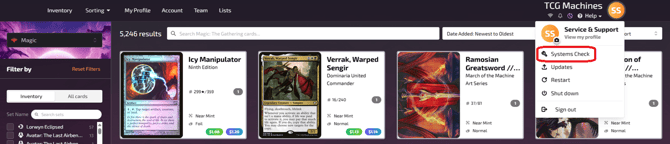
First, navigate to the top-right corner of the sort UI page. From here, click on the circle account, the Systems Check will be at the top of the list:
Systems Check Layout
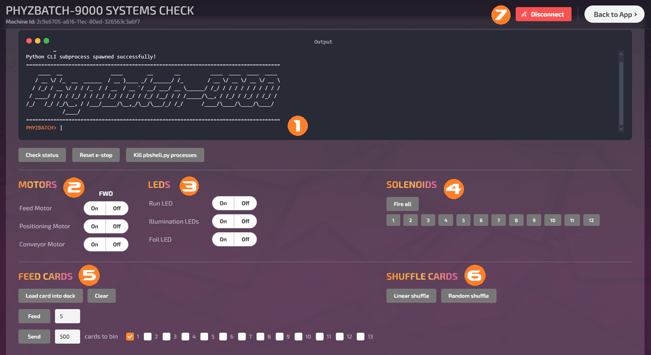
Warning: if you leave the Systems Check page without clicking on the red "Disconnect" button at the top of the screen then you will be met with a "Camera failed to connect" error upon returning to the sort page.
- Output Terminal - This screen 'prints' commands sent to your PhyzBatch when you run any of the functions on this page.
- Motors - This allows you to manually turn the three motors within your PhyzBatch on and off to test their functionality. Clicking 'On' will cause the motor to run during normal conditions, and clicking 'Off' will stop the motor.
- Feed Motor - this motor runs the feed wheels which sit on the landing plate where cards are fed into the scanner module
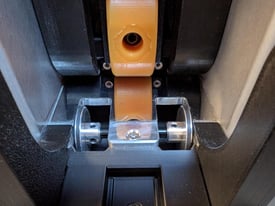
- Positioning Motor - this motor runs the entry and exit rollers in the scanner bay, as well as the foam (or belt) rollers. Please remove the glass tray from your machine before running this motor to minimize wear on the glass.
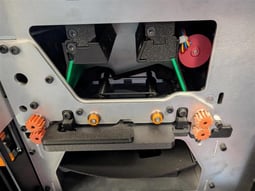
- Conveyor Motor - this motor runs the conveyor, you may need to remove the conveyor cover to get eyes on the belt-and-pulley system at the back of your machine.
- Feed Motor - this motor runs the feed wheels which sit on the landing plate where cards are fed into the scanner module
- LEDs - similar to the motors there are 3 sets of LEDs in your PhyzBatch scanner which you can manually toggle on and off:
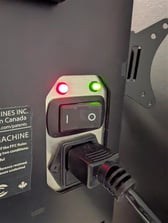
- Run LED - this command will turn the Run LED on at the back of the scanner next to the red running light, it should glow green.
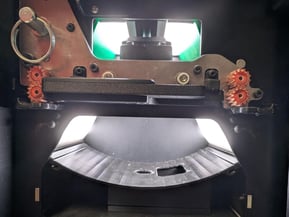
- Illumination LEDs - the upper and lower lights (lower LEDs are visible when you take the metal plate off in front of the camera shroud
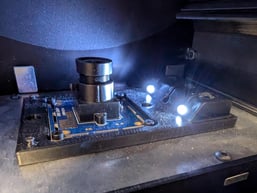
- Foil LED - you can see both LEDs by removing the curved piece, the box is also removed in the below image for your reference - when re-installing be sure to align the edges of the curved shroud
- Run LED - this command will turn the Run LED on at the back of the scanner next to the red running light, it should glow green.
- Solenoids - these are the electromagnetic motors responsible for pushing the flappers up and down all along the conveyor. Clicking on "Fire All" will cause each flapper to pop up in sequence from bin 2 down to bin 13, while clicking on the individual solenoids will cause those specific flappers to activate. Take note that clicking on "1" will cause bin 2's flapper to fire as there is no solenoid behind bin 1 ('unidentified' by default). Clicking on "2" will cause the bin 3 flapper to fire, so on and so forth.
- Feed Cards - this function allows you to send a pre-determined number of cards directly to the bin(s) of your choice. As with any other function where cards are run through the machine, make sure that the feed fixer is set appropriately for the TCG and you have the card weight on top of the stack to ensure consistent feeding.
- Load Card into Dock & Clear - "Load card into dock" will feed one card into the scanner over the center of the glass. "Clear" will send any cards in the scanner/conveyor out the back of the conveyor into bin 1.
- Feed - this option is the same as the "Feed Cards" feature in the Maintenance tasks menu (accessible via the sort page, gear icon in the top-left next to "My sort setup") where you can send any number of cards through the machine, one at a time. Cards will move over the scanner before going the length of the conveyor and out into bin 1.
- Send ___ cards to bin ___ - choose the number of cards you'd like to send to any given bin in the chassis. The machine will complete this task in sequential order (from bin 1 to bin 13) depending on how many cards and bins you choose. It will still respect normal bin capacity settings (500/bin) and is limited to the hopper capacity (~1,750 cards).
- Shuffle Cards - this feature allows you to take any number of cards in the hopper and distribute them across the 12 chassis bins - this function will not send any cards sent to bin 1.
- Linear Shuffle - this will send cards in a looping sequence, starting with bin 2 and ending in bin 13; so the first card in the hopper will go to bin 2, the second to bin 3, third to bin 4... once a card lands in bin 13 the next card will go back to bin 2 and repeat the cycle until cards in the hopper run out or a bin reaches its 500-card capacity.
- Random Shuffle - this will truly randomize the bins that cards are sent to with no rhyme or reason.
- Disconnect - the PhyzBatch-9000 Systems Check page takes hold of the camera in the scanner bay to perform many of the page's functions. As such you will need to click on the red "Disconnect" button at the top of the page and wait for it to transform into the green "Connect" button before clicking "Back to App" and returning to the sort page.
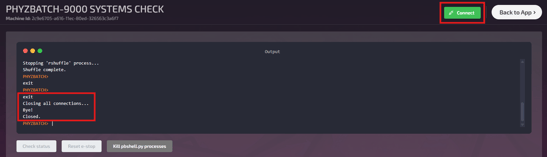
Warning: If you do not click on the "Disconnect" button at the top of the Systems Check page before returning "Back to App" then you will run into the Camera Disconnect error when you try to run a sort. You can navigate back to the Systems Check page to resolve this, conversely you can also turn the machine off and unplug it before plugging it back in again and both will release the camera.